Follow the steps below to set up a new database and user in DirectAdmin Panel
Step 1: Log in to Your Client Area
- Access your hosting account by logging into your Direct Admin with your hosting credentials client area.
Step 2: Open the Database Section
Under the Account Manager menu, select the Database section. This is where you’ll create and manage your databases.
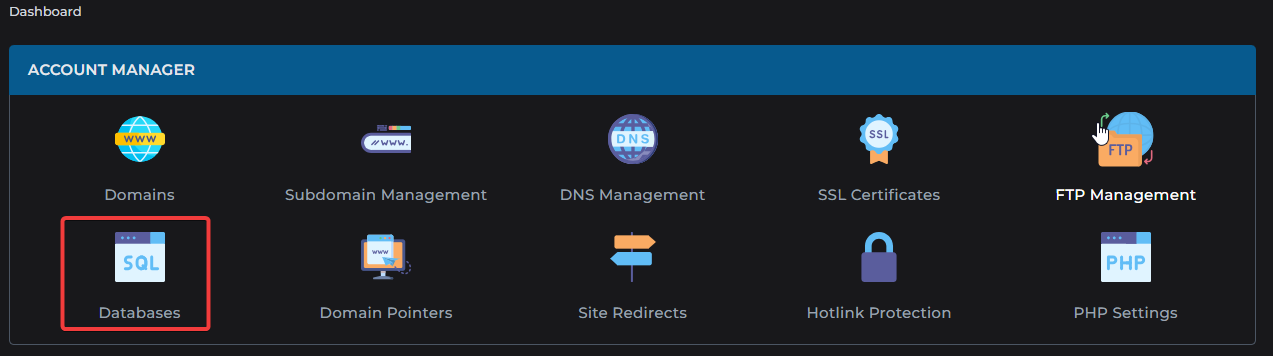
Step 3: Create a New Database
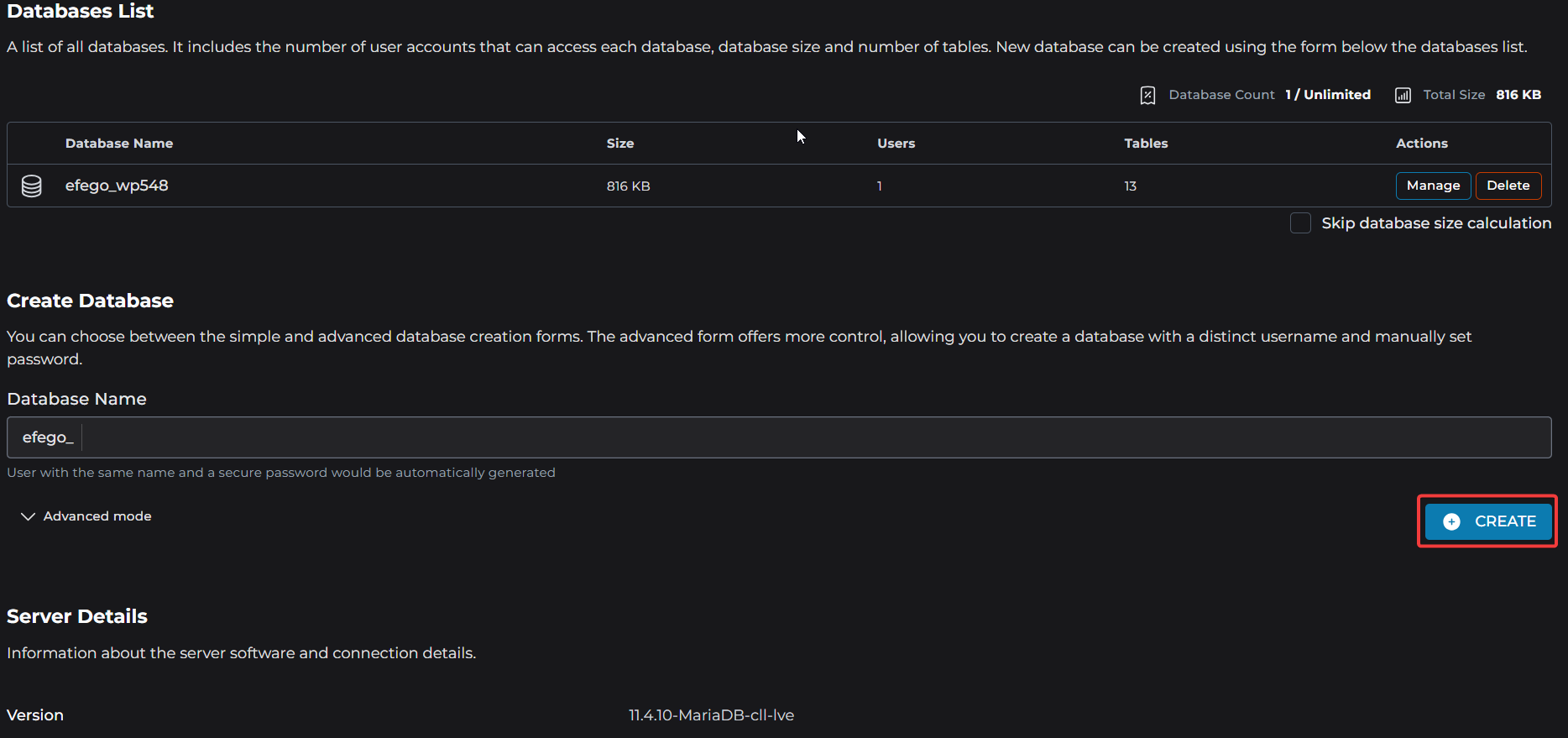
Click on Create Database. You’ll be prompted to enter Database Name if you don't select the advanced mode. Otherwise, you can set the following with the Advanced option:
-
Database Name
-
Username
-
Password
After filling in the required fields, click Create.
Step 4: Confirmation
Your new database and user will now be created. You can use these credentials to connect your website or application to the database.